

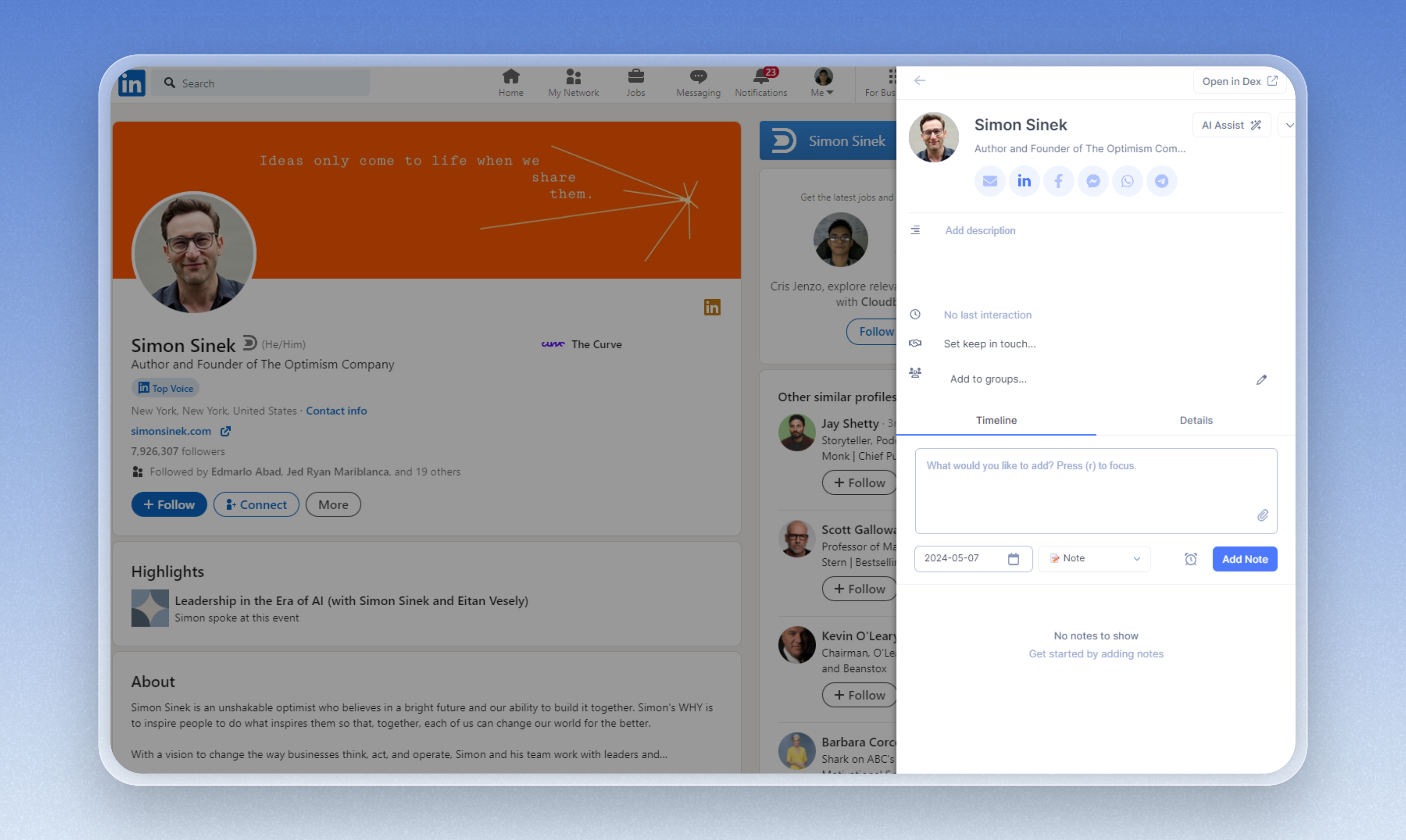
Installing the Extension
You can download the extension here! You should see this if the installation was successful: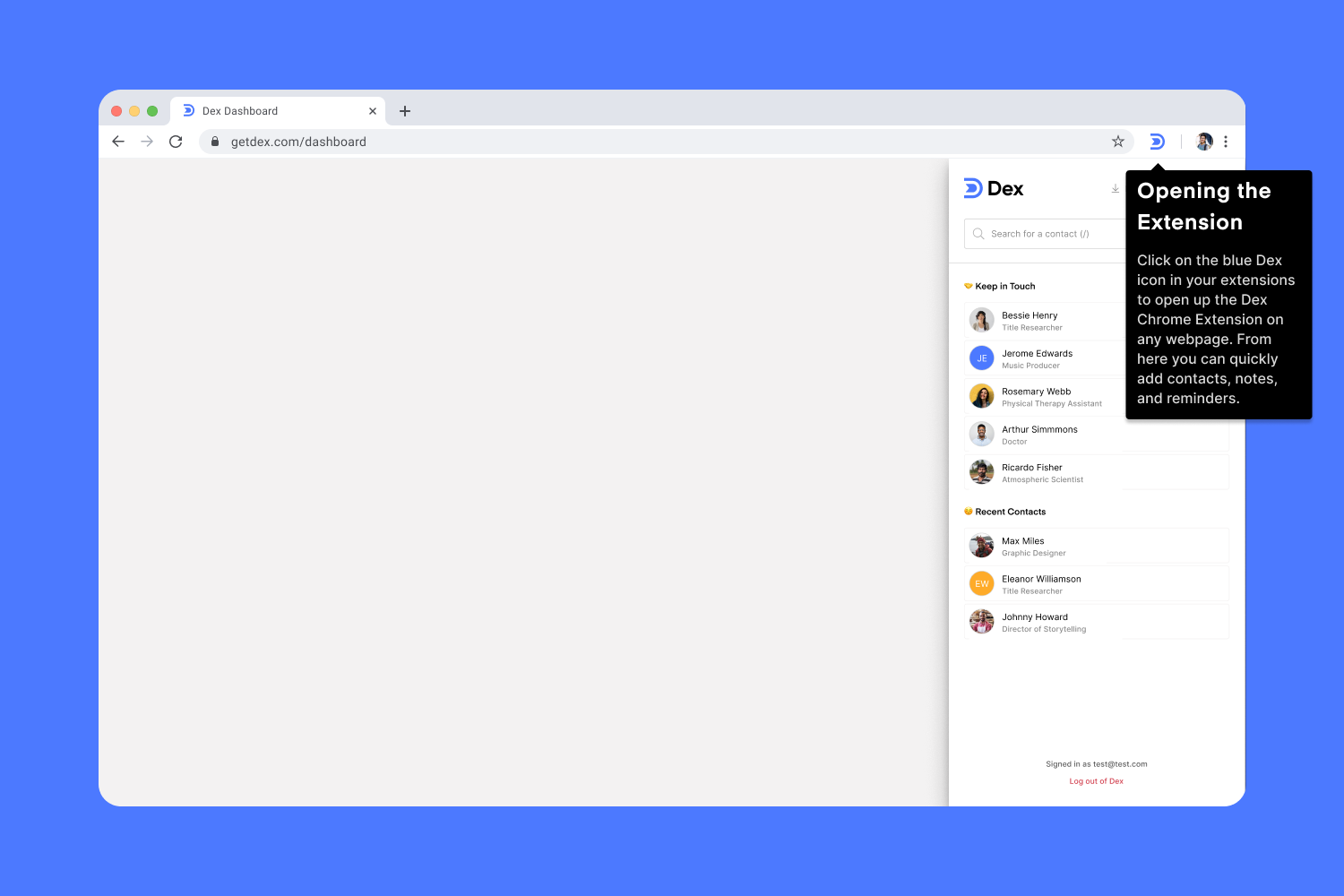
Using the Dex Extension
- Click the Dex icon on your contact’s profile
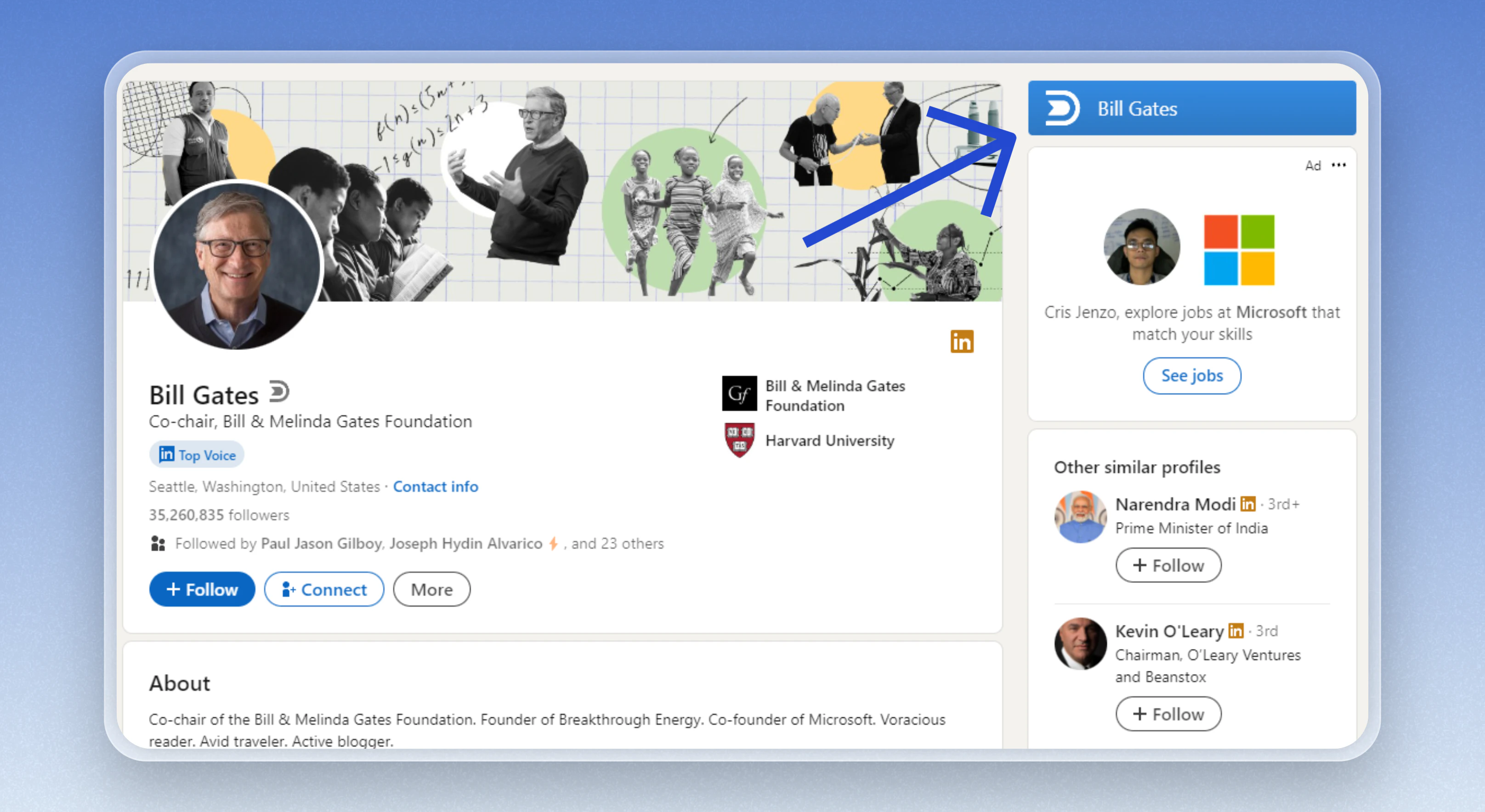
If the contact is already imported, Dex will open its details for you.
- Enhance
- Set Keep-in-Touch frequency
- Quickly add a note, event, reminder, etc
- Add to a group
- Star contact
- Update contact’s information on the ‘Details’ tab
- Archive or Delete
- Quicky open contact’s card in Dex
Supported Platforms
To learn more about each of our different social media integrations, check out their specific guide pages here:- Instagram Integration
- LinkedIn Integration
- Facebook Integration
- Twitter Integration
- Gmail Integration
- Outlook Integration
- Google Calendar Integration
- Superhuman Integration
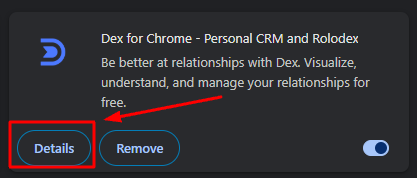
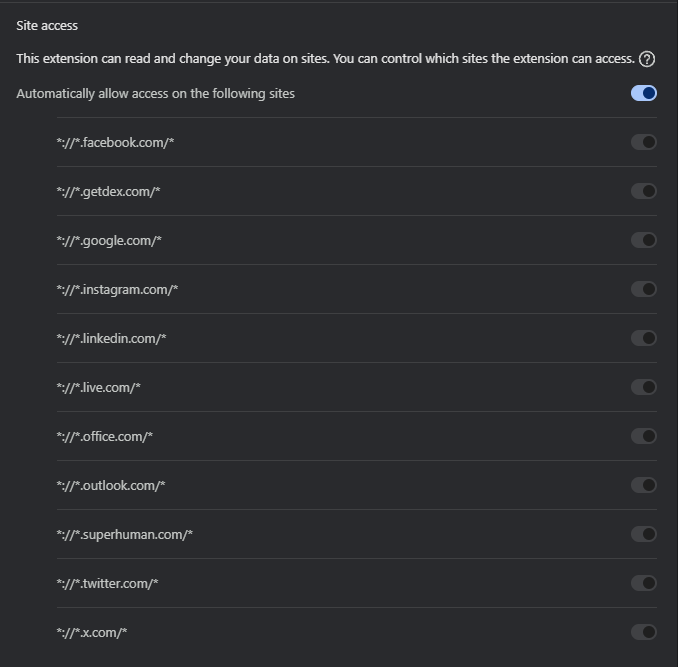
Manage Site Access
You can control which sites you give access to the Dex Extension. You can do this on the Extension Manager page of Chrome.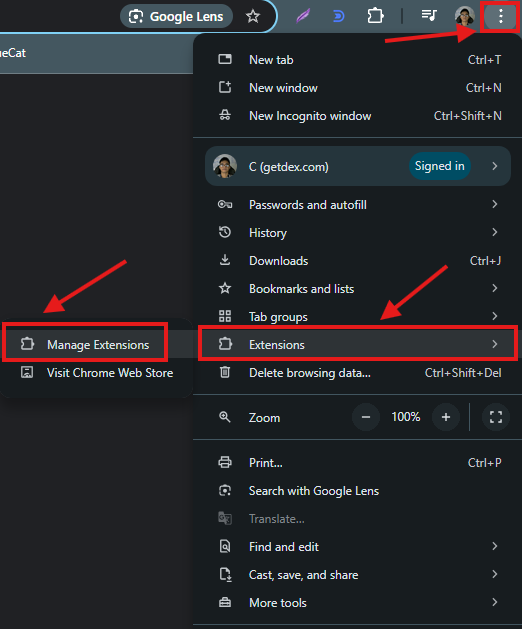
Update the Dex Chrome Extension
Chrome usually updates extensions automatically. If the Dex Extension isn’t working correctly (for example, not loading on LinkedIn), you can manually force an update.Steps to update
- Open Google Chrome
- Go to:
chrome://extensions - Turn on Developer mode (top-right corner)
- Click Update
- Wait for Chrome to check and install updates
- Refresh any open tabs where you’re using Dex
Tip: This updates all installed Chrome extensions, including Dex.
If the extension still isn’t working
Try the following:- Toggle the Dex Extension off and back on
- Refresh the page (especially LinkedIn)
- Restart Chrome
- Remove and reinstall the extension from the Chrome Web Store
Note: Chrome may disable an extension after an update if new permissions are required. Re-enabling or reinstalling usually resolves this.
When should I do this?
Manually updating can help if:- The Dex Extension isn’t appearing
- Features aren’t loading or responding
- You suspect the extension is outdated
- A recent fix has been released but not applied yet