If you’ve ever wondered “Who are all the startup founders in network?” this feature is well worth your attention.Views
From the left sidebar, a ‘Views’ section will appear above groups. These views are a set of shared filters.You can also access the Views Browser by pressing G + V.
- Default views: we’ve created views for existing users to show you what views can do — feel free to delete or customize these!
- Views are saved with contact filters. This means this will update constantly each time you open a View.
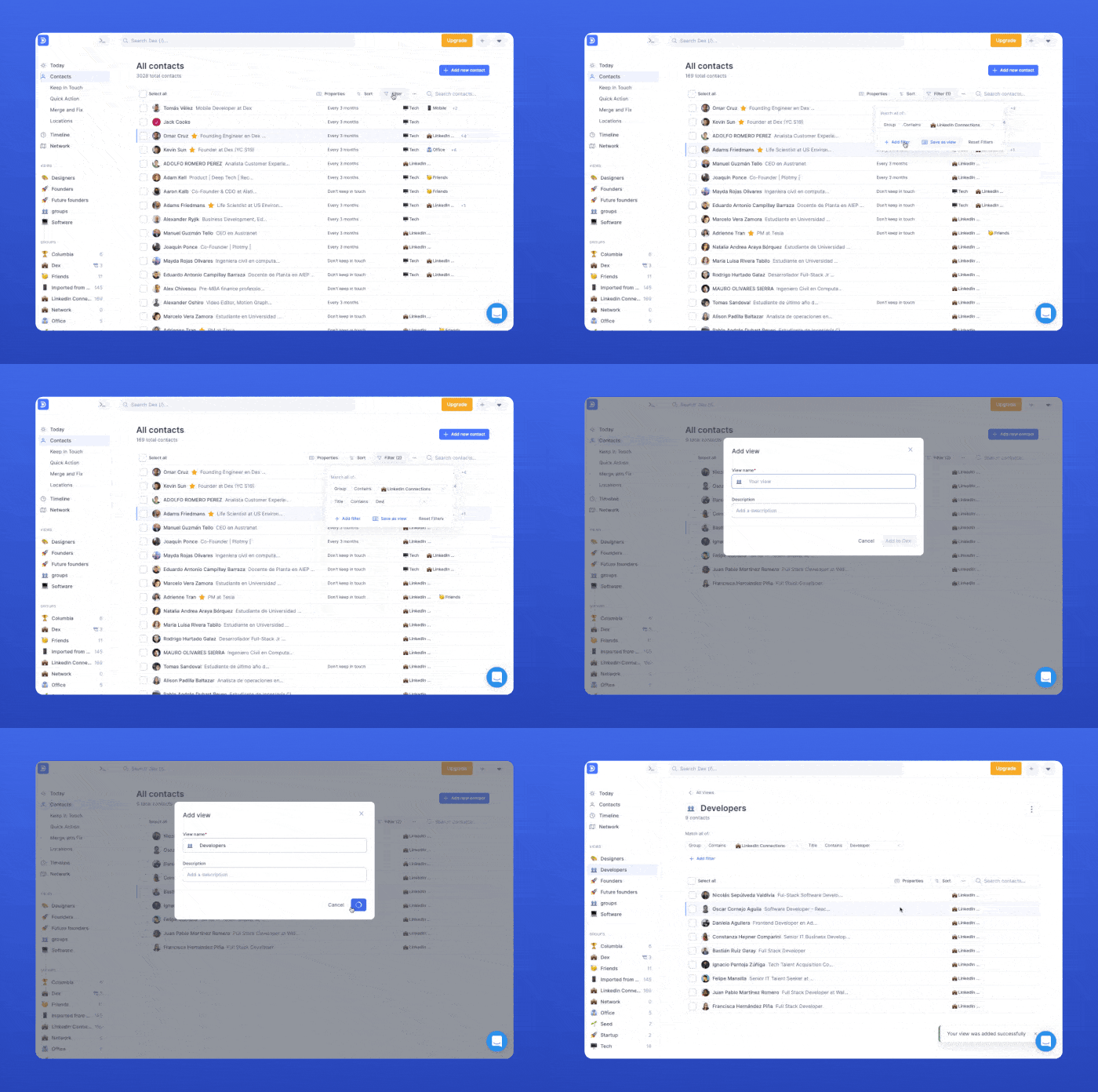
Creating Views
Create a filter
Depending on what you’re looking for, you can use the filter options on the Contacts page to start organizing your contacts. 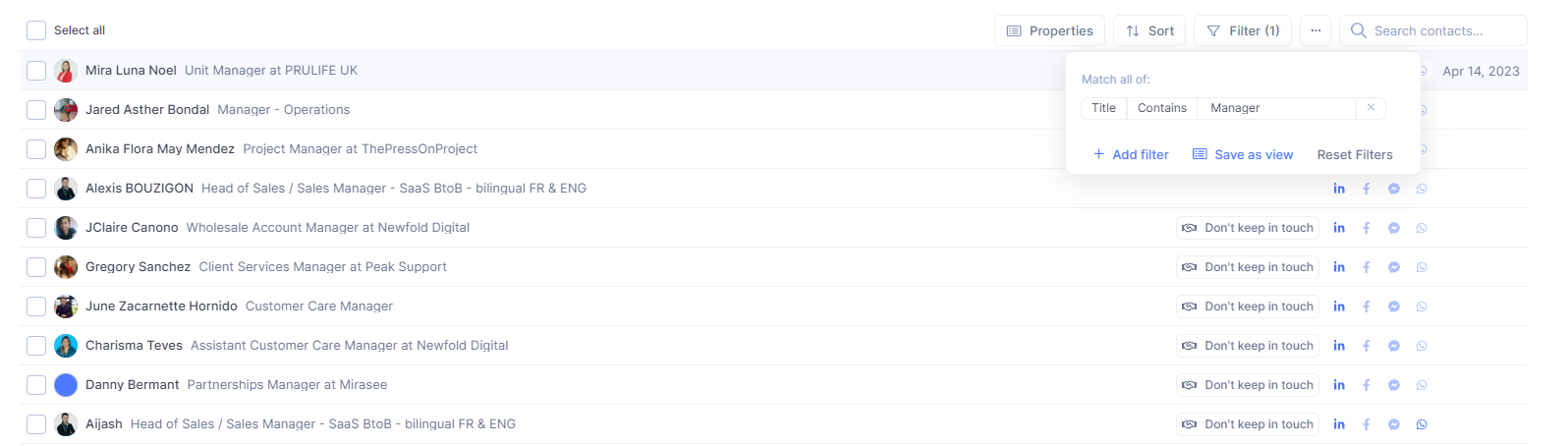
Save your filtered contacts as a View
Once you have the list of contacts you desire, click on ‘Save as View’ and assign the Views’ name and description. 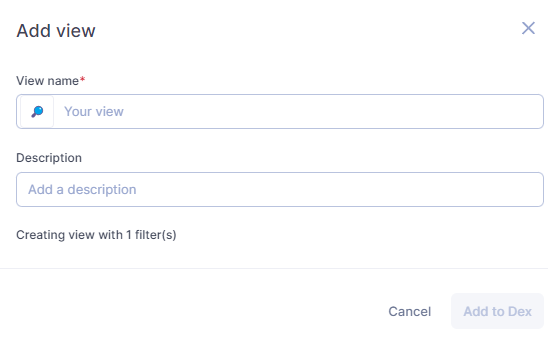
Filter Options
- Name
- Description
- Title
- Last interaction
- Last LinkedIn message
- Creation date
- Starred
- Group
- Tag
- Map Location
- Company
- Education
- Email
- Phone number
- Keep-in-touch
- Companies (LinkedIn) - for LinkedIn Connections
- Description
- Education (LinkedIn) - for LinkedIn Connections
On a view page, you can still sort and search, like you can with all your contacts on the contacts page.
Dealing with a lot of duplicates after importing your contacts from different sources? A simple ‘Merge and Fix’ should do the trick.Merge and Fix
From the Merge & Fix page, view all the possible duplicates that Dex can find. We currently search duplicates based on:
- Full name
- Email
- Phone
- Nicknames are supported (ask us to add more if we’re not matching your contacts!).
- Middle names are no longer considered and will not exclude possible duplicates.
- Special characters are handled appropriately!
- For all fields that will be merged (e.g. phone numbers or email addresses), we’ll take a combination of all values.
- For all values, we prioritize the most recently created contact.
In addition, we ensure that each set of duplicates does not have different Linkedin, Facebook, and Twitter profiles (or they’d belong to different people). We also ensure that for each duplicate, at least one contact is not an archived contact.Merge and Fix is not reversible
Auto Merge & Fix
This feature is still in beta, if you run into any issues or have feedback, please reach out to us at feedback@getdex.com What is Auto Merge & Fix?
Auto Merge & Fix is a smart feature that helps keep your contact list clean and organized by automatically detecting and merging potentially duplicate contacts. Instead of manually reviewing and merging duplicates, Dex does the heavy lifting for you!How it works
Conservative Approach for Accuracy 🛡️The feature uses a conservative approach to identify potential duplicates, prioritizing accuracy over quantity. This means:
- Fewer false positives - Dex is careful not to merge contacts that aren’t actually duplicates
- High confidence matches - Only contacts with strong similarity indicators are considered for merging
- 100% accuracy cannot be guaranteed - While we strive for perfection, the automated nature means occasional errors may occur
Daily Automatic Processing ⏰
- Dex automatically runs the duplicate detection process every day
- The system processes your contacts in the background without interrupting your workflow
- You’ll only see results when potential duplicates are found and merged
How to enable Auto Merge & Fix
Web App
-
Go to Settings → Workflow → General
-
Find the “Detect and merge duplicates automatically” option
-
Toggle the switch to ON ✅

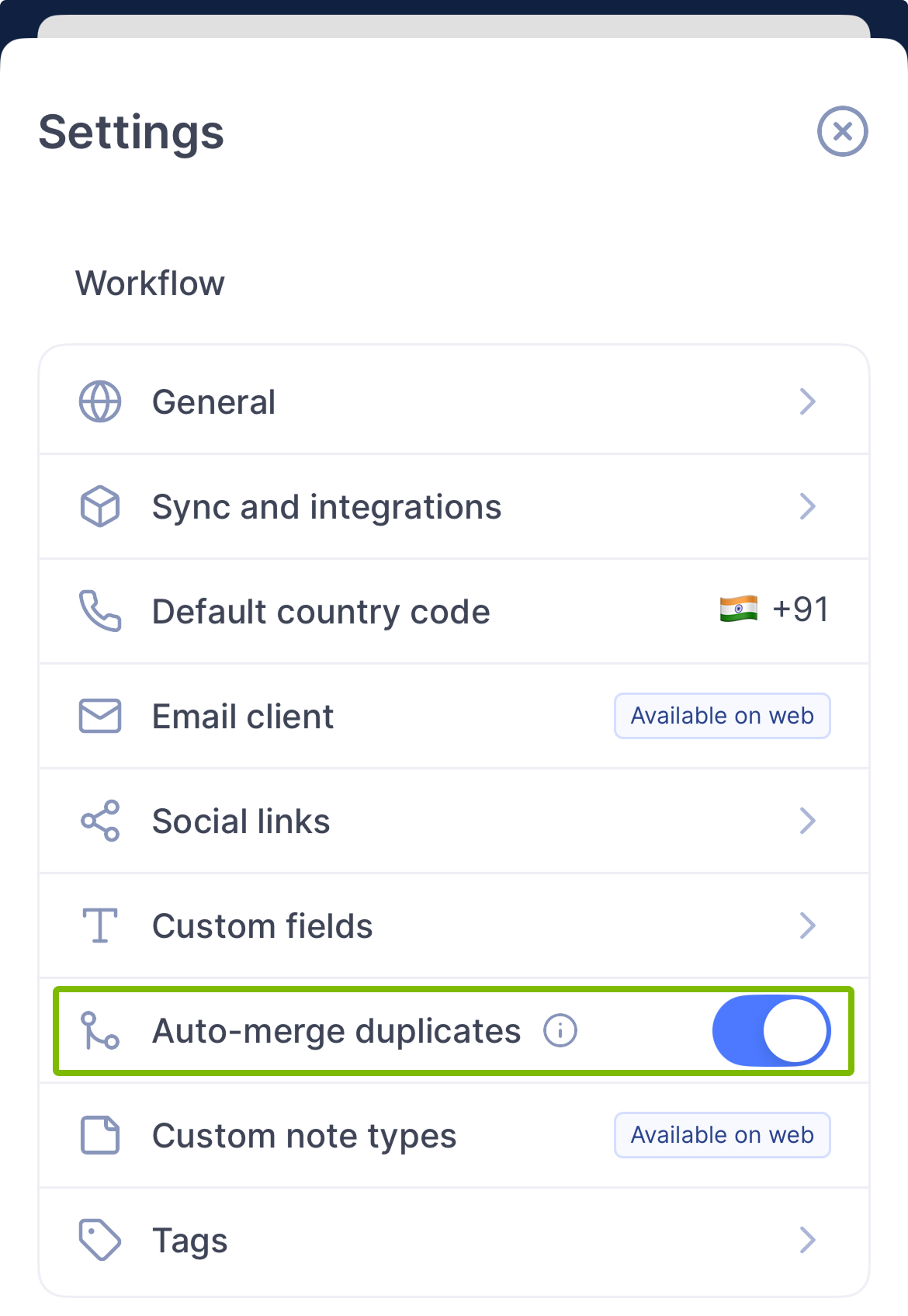
Mobile App
-
Open the Settings menu
-
Navigate to Workflow Settings
-
Enable “Auto-merge duplicates”
What happens when duplicates are found?
When Auto Merge & Fix identifies potential duplicates:
- Automatic merging - Contacts are merged automatically without requiring your input
- Data preservation - All important information from both contacts is preserved in the merged result
- Clean results - You’re left with a single, comprehensive contact record
Manual duplicate management
If you prefer to review duplicates manually:
- Disable the “Detect and merge duplicates automatically” setting
- Use the Merge & Fix page to manually review and merge duplicates
- This gives you full control over which contacts are merged
Need help or have feedback?
If you encounter any issues or have suggestions for improving the feature:
- False positives - Contact us if contacts were incorrectly merged
- Feature feedback - Share your thoughts on how the feature could be better
- General questions - We’re here to help!
📧 Email us at: feedback@getdex.comAuto Merge & Fix is designed to make contact management effortless while maintaining the highest possible accuracy. We’re constantly improving the algorithm based on user feedback!🚀
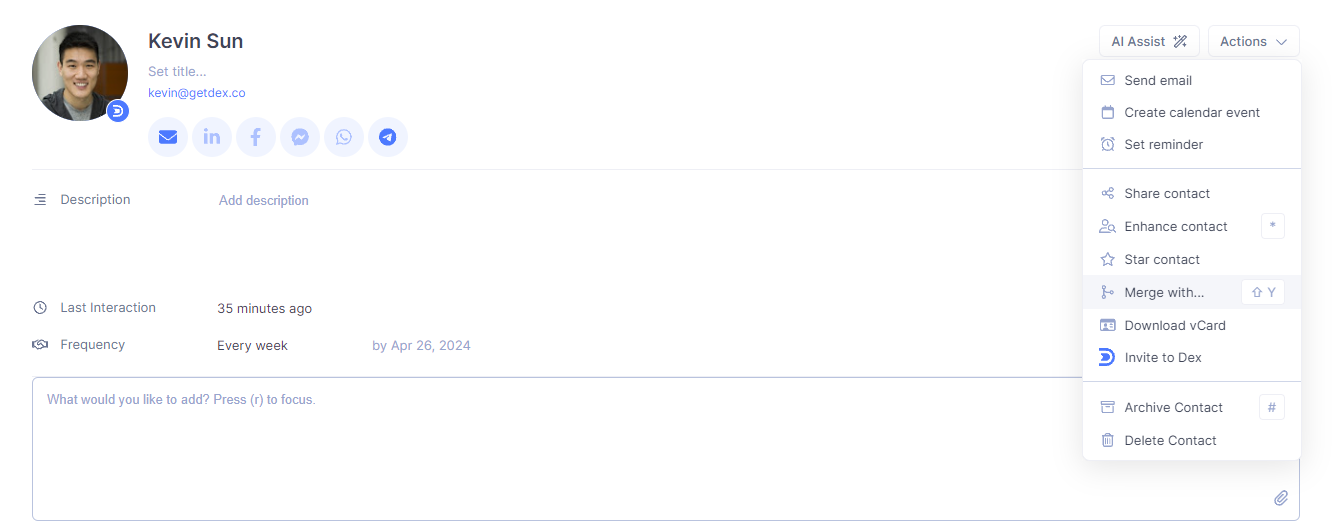
Manual Merge on the Contacts page
You can merge more than 1 duplicates at a time while on the Contacts page.Tick the boxes for all the contacts you want to merge and click ‘Merge’.
Manual Mobile Merge and Fix
Now available on Dex Mobile, merge and fix operates similarly. Simply navigate to the Merge and Fix section on the bottom right, and merge matching found duplicates: 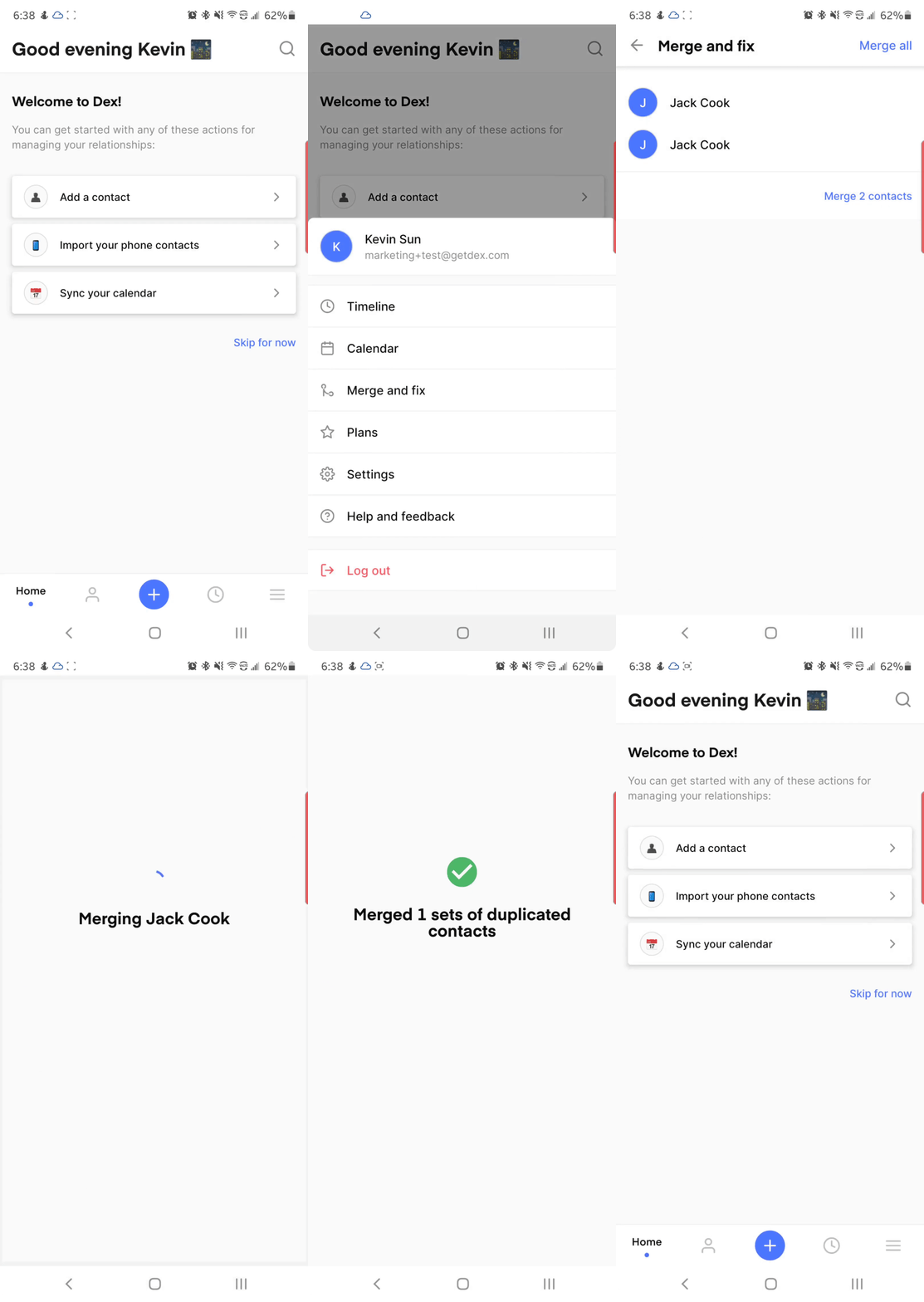



.png?fit=max&auto=format&n=o2M6nMpC-Moxg4Kl&q=85&s=8ee651d21fbb4f1120b92789ce0bd2a9)

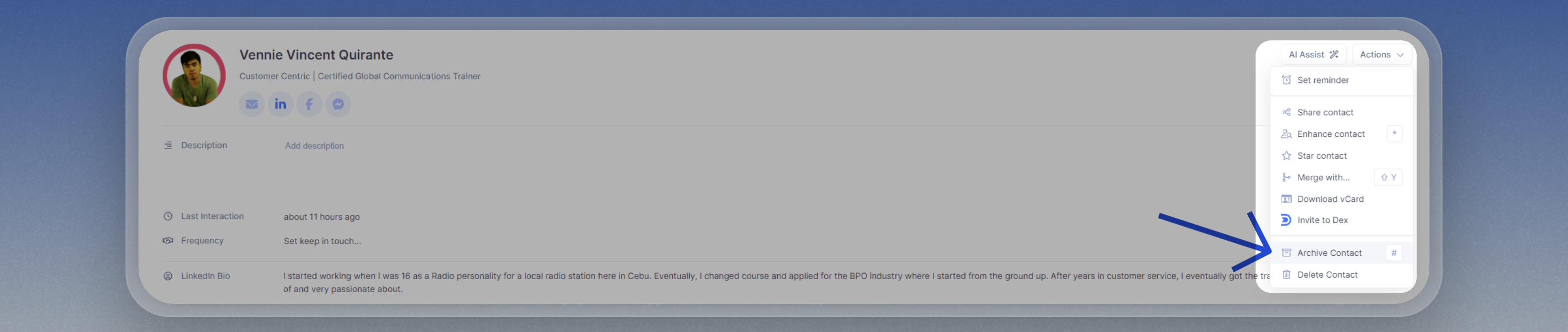
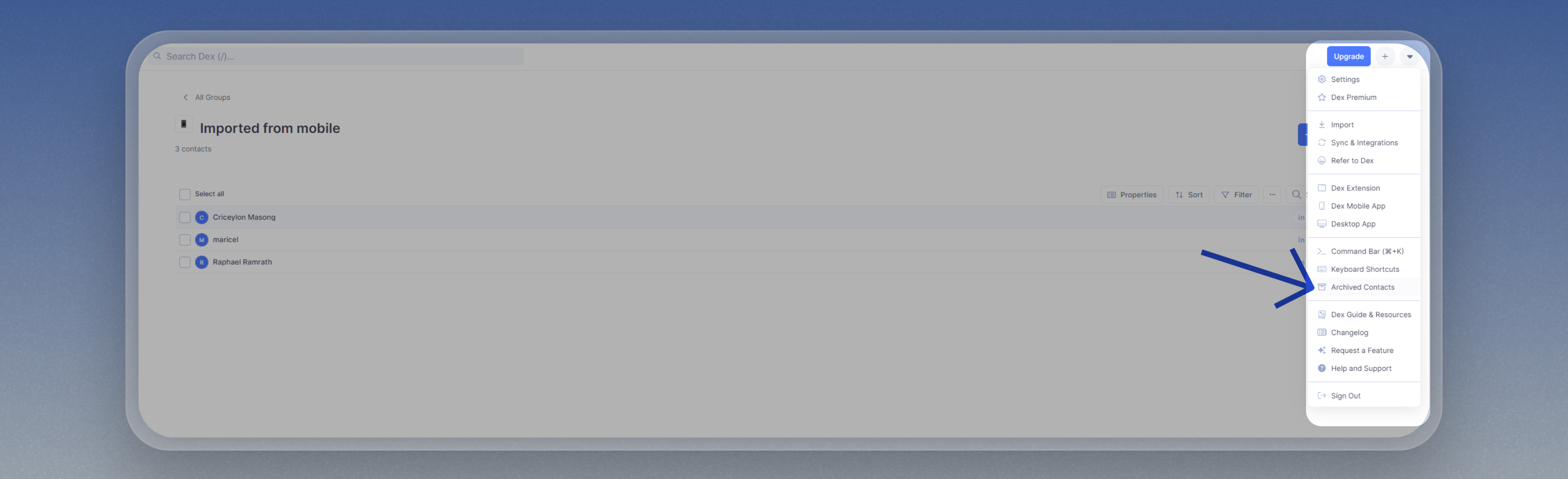 This is where you can restore your contacts by simply clicking on the ‘Restore’ button after selecting the contacts.